Pag-IBIG Online Login: How to Access Virtual Pag-IBIG, Register, Forgot Password, and Troubleshoot
You want to check your Pag-IBIG contribution balance but cannot visit a branch. You need to verify your Member’s Data Form online. You want to apply for a loan without wasting a day at an office. Virtual Pag-IBIG—Pag-IBIG’s online platform—gives you access to your account 24/7 from your phone or computer.
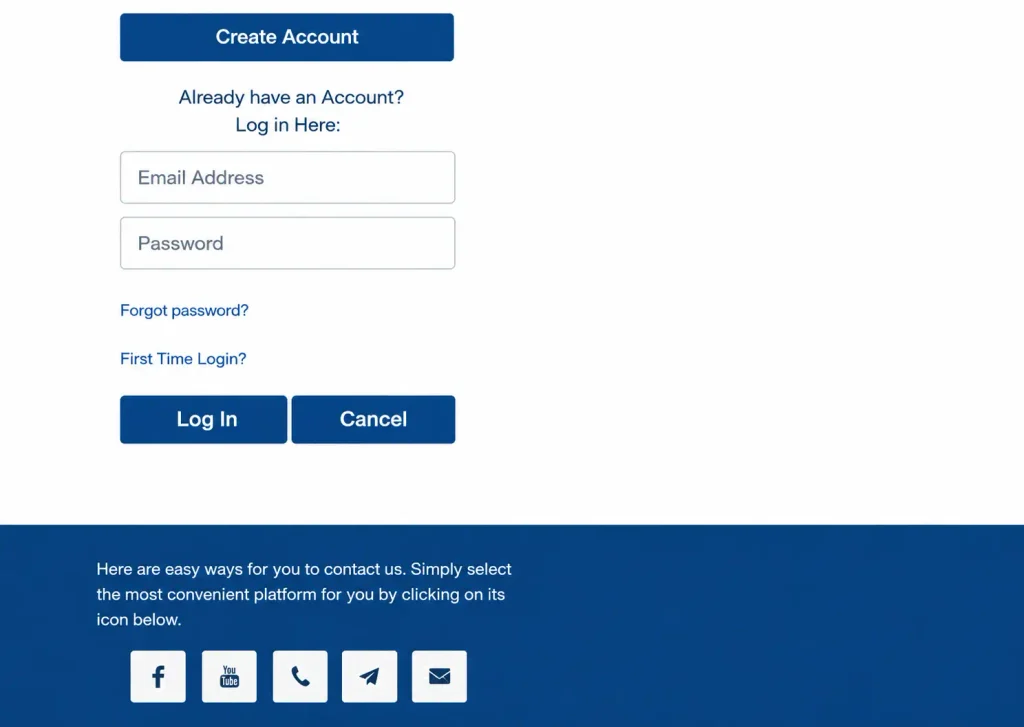
But logging in for the first time can be confusing. You are unsure whether to use your MID number or RTN. You do not know if you need to register first. You forgot your password. You get an error message and cannot proceed.
This guide walks you through every step: registering for Virtual Pag-IBIG, logging in, accessing what you need, and fixing common problems.
What Is Virtual Pag-IBIG
Virtual Pag-IBIG is Pag-IBIG’s official online platform where members can access their account, view contributions, check loan eligibility, apply for loans, update information, and handle various services without visiting a branch. It is the digital version of your Pag-IBIG membership.
Your Virtual Pag-IBIG account is linked to your official Pag-IBIG membership. The information in your online account represents your Pag-IBIG records.
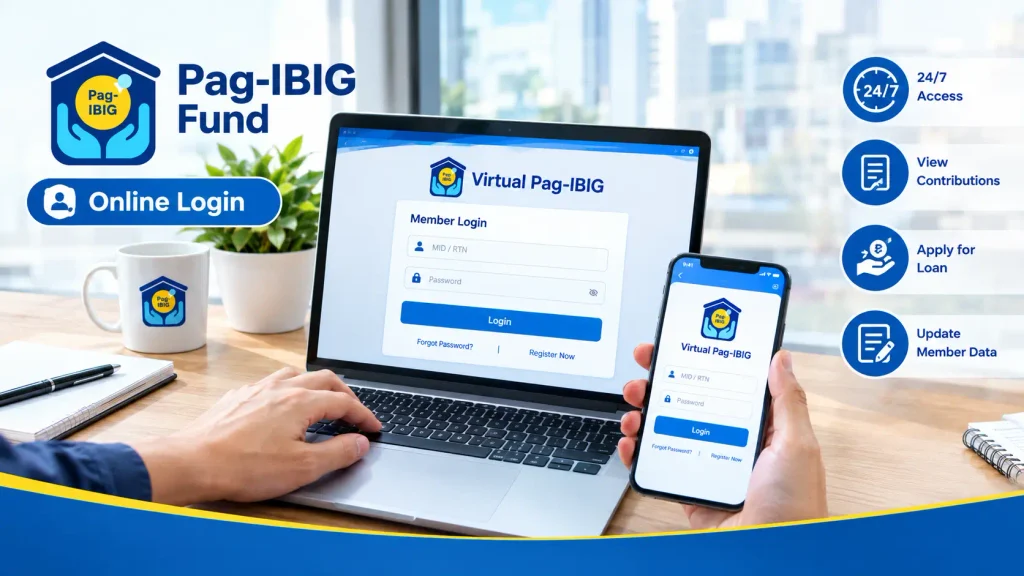
Virtual Pag-IBIG is free. Pag-IBIG does not charge for online account access, registration, or using the platform’s services.
Do You Need to Register for Virtual Pag-IBIG
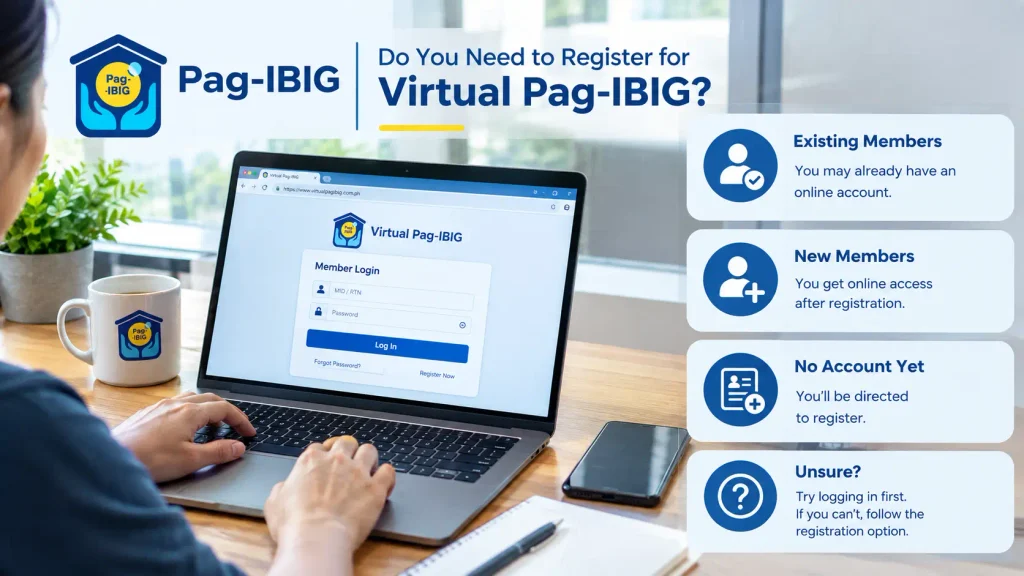
The answer depends on your membership status. Some members already have online access automatically; others need to register.
Existing Members:
If you registered for Pag-IBIG before Virtual Pag-IBIG existed or at a branch, you may already have an account. You might not know this. The best way to find out is to try logging in.
New Members:
If you registered through Virtual Pag-IBIG, you already have online access immediately after registration.
No Account Yet:
If you have never set up an online account and try to log in, you will be directed to register.
Unsure:
Go to the Virtual Pag-IBIG login page. If you can log in, you already have an account. If you cannot, follow the registration option.
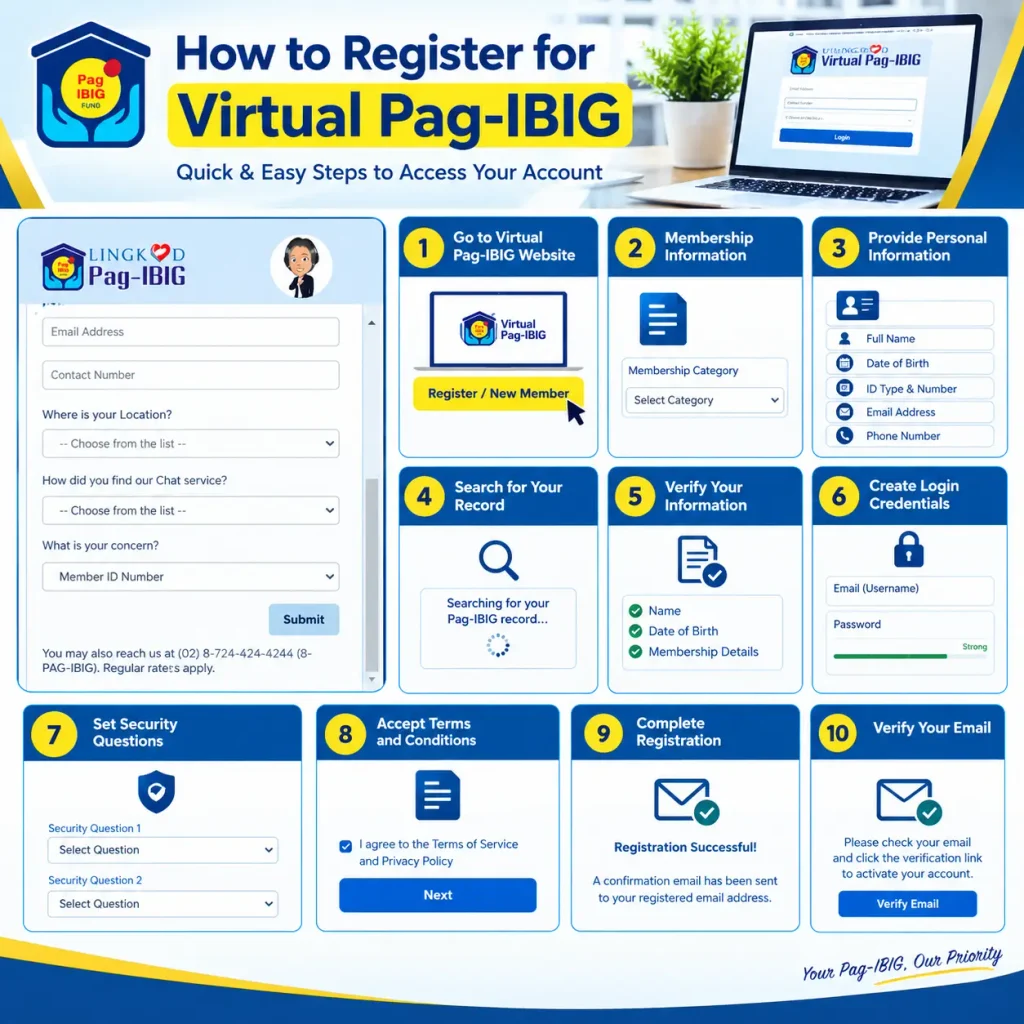
How to Register for Virtual Pag-IBIG
If you do not yet have a Virtual Pag-IBIG account, registration is straightforward.
Go to Virtual Pag-IBIG Website
Visit the official Virtual Pag-IBIG website. Look for a “Register” or “New Member” option.
Membership Information
Provide information about your membership status. Specify the category that applies to your situation.
Provide Personal Information
Enter your full name, date of birth, government ID type and number, email address, and phone number. Use accurate information—this is matched against your Pag-IBIG membership records.
Search for Your Record
Pag-IBIG searches its database for your membership using the information you provided. If found, your record appears. If not found, you may not yet be registered with Pag-IBIG, or your information may not match exactly.
Verify Your Information
Review the membership information displayed. Confirm your name, date of birth, and other details are correct. If anything is wrong, contact Pag-IBIG to correct your records before proceeding.
Create Login Credentials
Choose your email address (this becomes your username) and create a password. Your password should be strong, using a combination of character types for security.
Set Security Questions
Choose security questions and answers that only you know. These are used if you forget your password. Choose questions whose answers will not change over time.
Accept Terms and Conditions
Review and accept Pag-IBIG’s terms of service.
Complete Registration
Submit your registration. Pag-IBIG sends a confirmation email to your registered email address.
Verify Your Email
Open the confirmation email from Pag-IBIG and follow the instructions to verify your account.
How to Log In to Virtual Pag-IBIG
Once registered, logging in takes seconds.
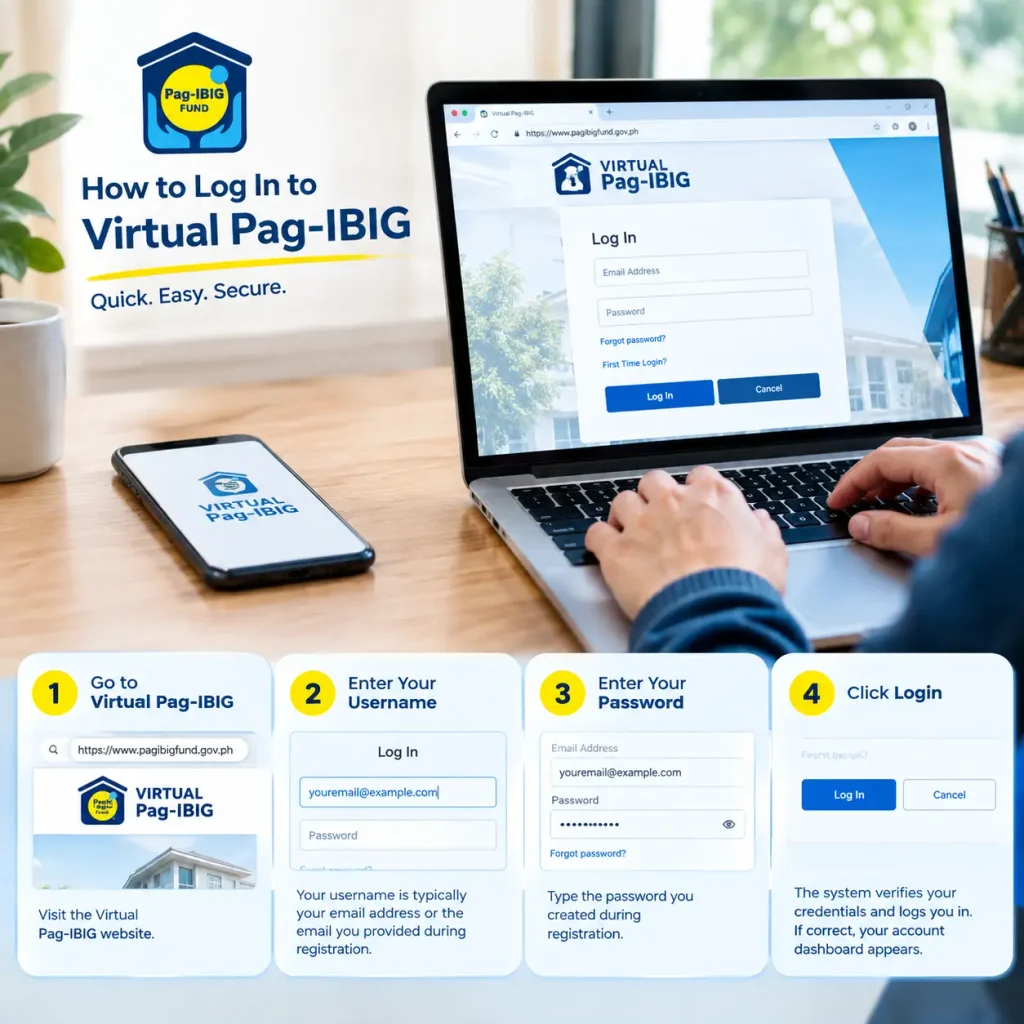
Step 1: Go to Virtual Pag-IBIG
Visit the Virtual Pag-IBIG website.
Step 2: Enter Your Username
Your username is typically your email address or the email you provided during registration.
Step 3: Enter Your Password
Type the password you created during registration.
Step 4: Click Login
The system verifies your credentials and logs you in. If correct, your account dashboard appears.
What If It Does Not Work:
If the system says your username or password is wrong, verify you entered them correctly. Check that Caps Lock is off. Spaces at the beginning or end of your username cause login failure—retype without extra spaces.
Two-Factor Authentication:
Some Pag-IBIG sessions may require additional verification. You may receive a one-time password (OTP) via SMS or email. Enter that OTP to complete login.
Login Using Different Methods
Login Using Email Address
Your registered email is your primary username for Virtual Pag-IBIG. Enter it along with your password.
Login Using MID Number
Some Pag-IBIG portals allow login using your 12-digit Membership ID (MID) number instead of email.
Forgot Your Password
If you cannot remember your password, recovery is straightforward.
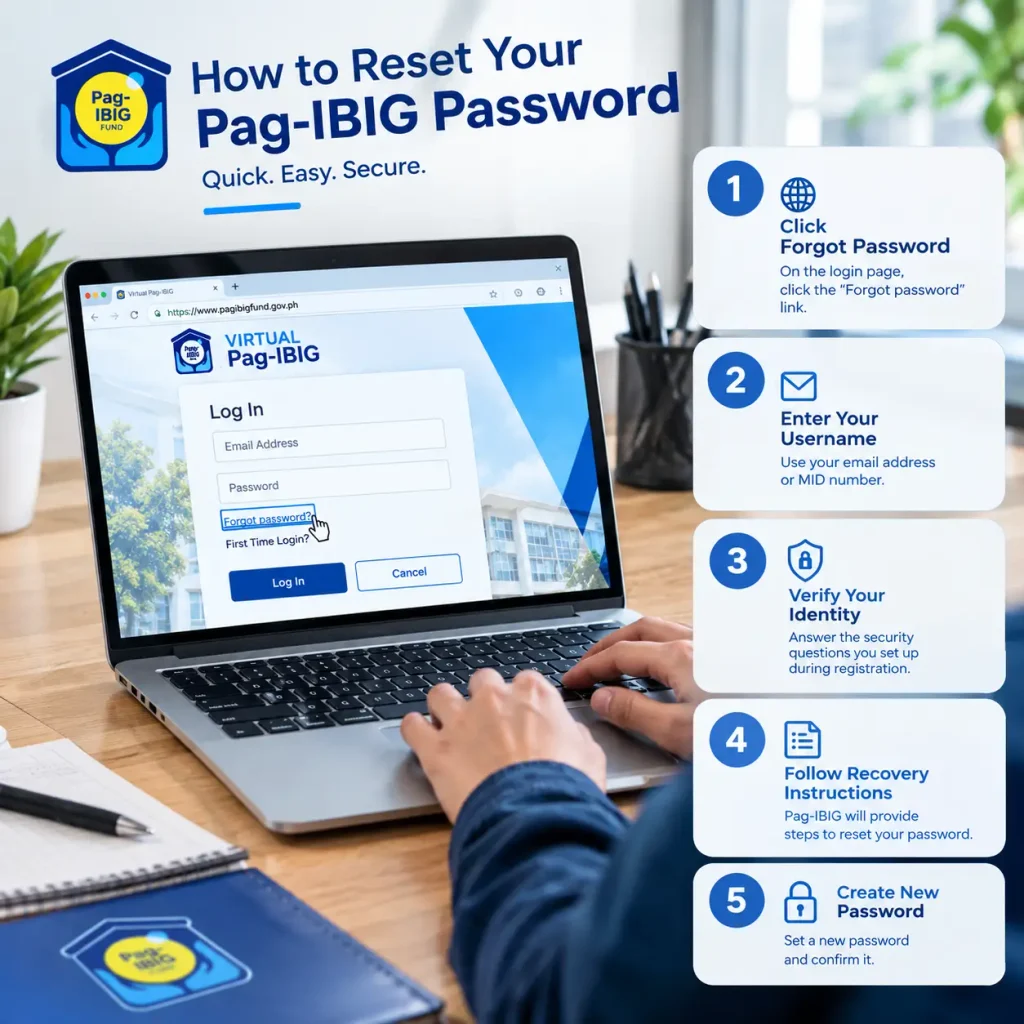
Step 1: Click Forgot Password
On the login page, click the “Forgot Password” or “Forgot Your Password?” link.
Step 2: Enter Your Username
Enter your email address or MID number. Pag-IBIG searches for your account.
Step 3: Verify Your Identity
Pag-IBIG asks security questions you set up during registration. Answer correctly.
Step 4: Follow Recovery Instructions
Pag-IBIG provides instructions for resetting your password. Follow the process as directed.
Step 5: Create New Password
Once you verify your identity through the recovery process, create a new password and confirm it.
Contact Pag-IBIG directly. Explain that you cannot reset your password through security questions. Provide identification to verify you are the account owner. Pag-IBIG can help you regain access.
Forgot Your Username (Email)
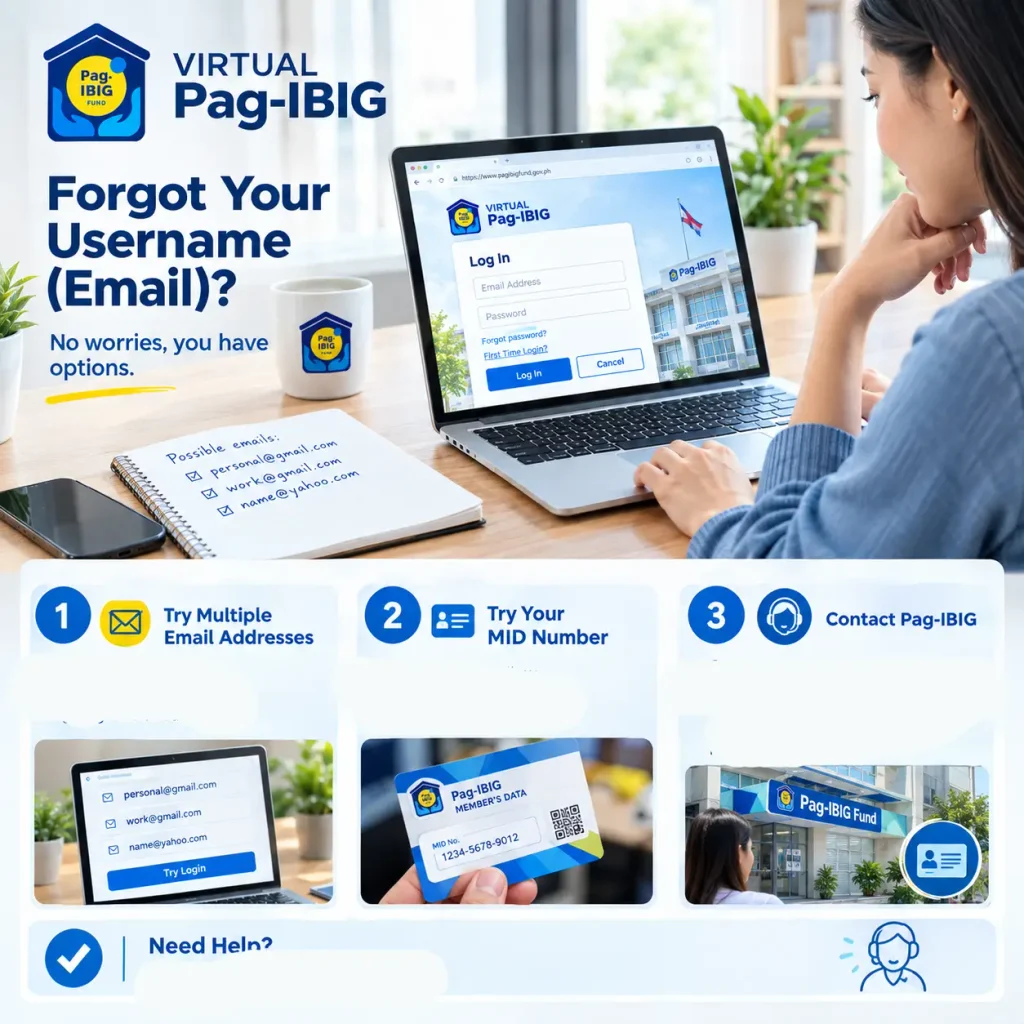
If you do not remember which email address you registered with, you have options.
Try Multiple Email Addresses:
If you have multiple email addresses, try logging in with each one.
Try Your MID Number:
Some systems allow login with your MID instead of email.
Contact Pag-IBIG:
Call or visit a branch. Provide your government ID and MID number. Pag-IBIG staff can confirm your registered email or help you regain access.
What You Can Access After Login
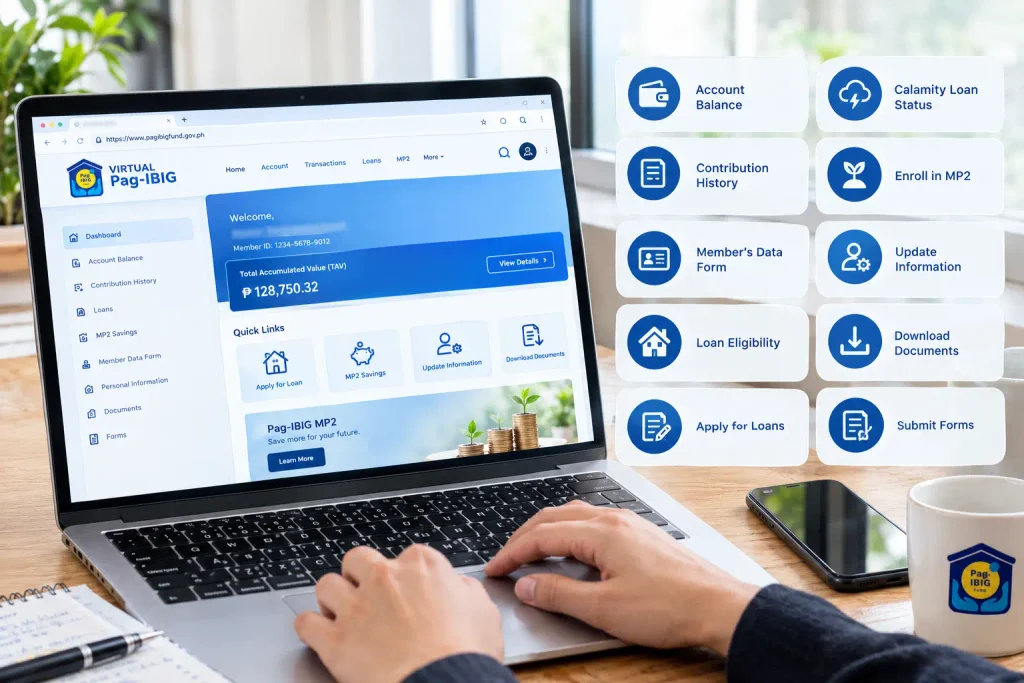
Virtual Pag-IBIG provides access to various services and information.
View Your Account Balance:
See your Total Accumulated Value (contributions plus dividends) instantly.
Check Contribution History:
See month-by-month contributions posted to your account. Review how much was deducted each month and when it was posted.
View Your Member’s Data Form:
Access your MDF online showing your personal information as recorded by Pag-IBIG.
Check Loan Eligibility:
Determine what types of loans you qualify for and maximum loan amounts available to you.
Apply for Loans:
Submit applications for housing loans, multi-purpose loans, or other available programs directly online.
Check Calamity Loan Status:
If a calamity loan is active and you applied, check your application status.
Enroll in MP2:
If interested in Pag-IBIG’s voluntary savings program, you can enroll online.
Update Personal Information:
Change your address, phone number, email, or other contact details online (though some changes may require branch verification).
Download Documents:
Some documents may be available for download or printing through your account. Check Virtual Pag-IBIG to see what documentation is available.
Submit Forms:
For some programs, you can submit online forms directly instead of visiting a branch.
Common Login Problems and Solutions
“Username or password incorrect”
Lorem ipsum dolor sit amet, consectetur adipiscing elit. Aenean diam dolor, accumsan sed rutrum vel, dapibus et leo.
“Account not found”
Your email might not be registered with Pag-IBIG, or it does not match Pag-IBIG’s records. Verify you provided your personal information correctly. Visit a branch with your ID to confirm your account status.
“You are not authorized to access this service”
Your account may not be active, or your membership status may have issues. Contact Pag-IBIG to confirm your membership is in good standing.
“Session expired”
For security, Virtual Pag-IBIG logs you out after a period of inactivity (typically 15-30 minutes). Log in again.
“Error 404” or “Page not found”
The URL might be wrong. Go directly to the official Pag-IBIG website rather than typing the URL manually. Bookmarks or links from trusted sources work better than typing.
“Website is slow or not loading”
Virtual Pag-IBIG experiences high traffic during certain times (month-end, after payroll). Try again later. Use a different browser or device if possible.
Cannot Verify Your Email During Registration
Check your spam folder for the confirmation email. If not there, the email address might have been entered incorrectly. Register again with the correct email.
Received Email Verification but Still Cannot Log In
Wait a few minutes after clicking the verification link. Your account activation can take a few moments to process. Try logging in again.
ESRS Login (Employer Portal)
Employers also access Pag-IBIG through an online system called ESRS (Electronic Submission of Remittance Schedule). This is separate from member-side Virtual Pag-IBIG.
ESRS is for employers to submit employee contributions, view remittance status, and manage payroll integration with Pag-IBIG. Employees generally do not need ESRS access.
If your employer has given you ESRS credentials, that is a different system from your personal Virtual Pag-IBIG account.
Never Share Your Password:
Do not share your password with anyone. Be cautious if anyone claiming to be from Pag-IBIG asks for your password.
Use a
Strong Password:
Uppercase and lowercase letters, numbers,
and symbols make passwords much
harder to guess or crack.
Change Your Password Periodically
Update
your password periodically for security. This reduces risk
if your credentials have been compromised.
Log Out
When Done
Do not leave your account open on shared computers.
Always click
“Log Out”
when finished.
Use Secure
Internet:
Avoid logging into Virtual Pag-IBIG on public Wi-Fi.
Use your home connection or mobile data instead.
Verify the Website:
Make sure you are on the official Virtual Pag-IBIG website before entering credentials. Phishing sites look similar but steal your login information.
Report Suspicious Activity:
If you see transactions
or changes you did not make,
contact
Pag-IBIG immediately.
Mobile App vs. Web Browser Access
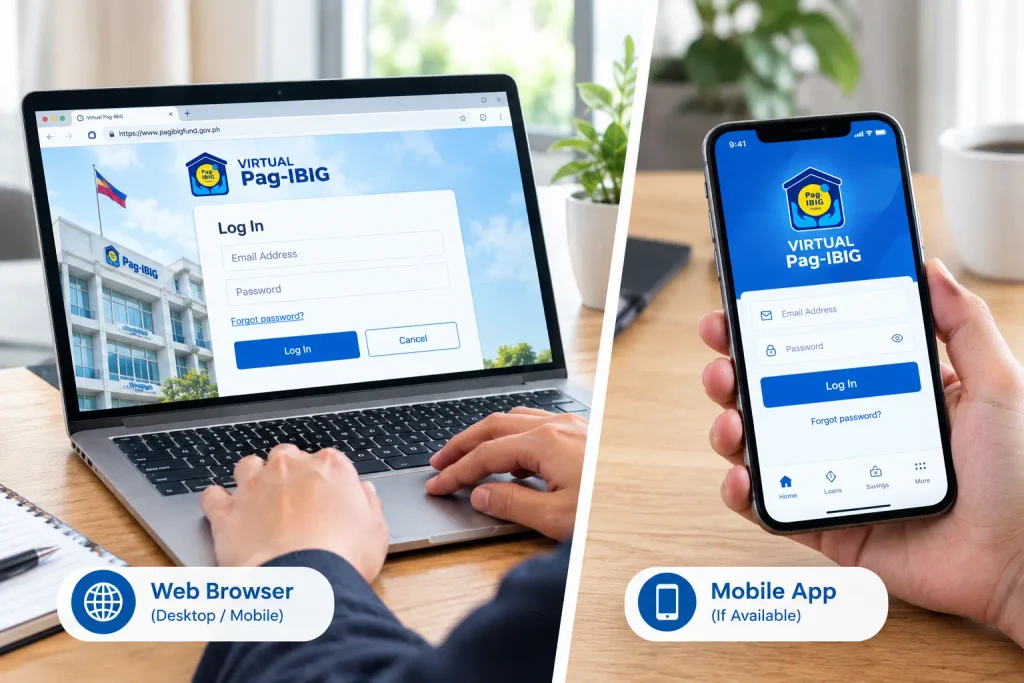
Virtual Pag-IBIG can be accessed through a web browser or mobile app.
Web Browser (Desktop/Mobile)
Go to the Virtual Pag-IBIG website on any browser. Log in with your email and password. This method works on phones, tablets, and computers. No download needed.
Mobile App (If Available)
Some members can download the official Pag-IBIG mobile app from app stores. The app provides access to your account with a mobile-optimized interface for phone use.
Which Should You Use
If you use a phone occasionally, web browser login is fine. If you check your account regularly on your phone, downloading the app might be more convenient. Both methods access the same account and data.
Account Recovery Options
If your account has problems beyond simple forgotten passwords, several recovery paths exist.
Email-Based Recovery: If your registered email still works, use the forgot password function. Pag-IBIG sends recovery instructions to that email.
Security Question Recovery: You set security questions during registration. If you remember your answers, you can use them to verify identity and reset your password.
Government ID Verification: Contact Pag-IBIG in person with your government ID. Provide your membership details. Pag-IBIG staff can help verify your identity and restore access to your account.
Document Proof: Bring any Pag-IBIG documentation you have—membership card, contribution slip, or official letters. These help prove you own the account.
Protecting Your Account After First Login
Once you have access, take steps to keep your account secure.
Update Your Profile Information
During your first login, verify all personal information is correct. Update your email, phone, and address if they have changed. Current information ensures Pag-IBIG can contact you about important updates.
Set Up Security Questions
If not already done during registration, set up security questions for password recovery. Choose questions whose answers are known only to you and will not change.
Save Your MID
Note your 12-digit MID number somewhere secure (password manager, encrypted file, etc.). You will need it for various Pag-IBIG processes.
Bookmark the Official Site
Save the official Virtual Pag-IBIG website to your bookmarks. Use the bookmark to log in, never type the URL manually. This prevents accidentally visiting phishing sites.
Set a Calendar Reminder
If you access Virtual Pag-IBIG infrequently, set a reminder every few months to log in. This keeps your account active and lets you verify everything is normal.
Troubleshooting Account Access Issues
If you cannot log in despite correct credentials, try these diagnostic steps.
Clear Browser Cache and Cookies: Sometimes old cached data prevents login. Clear your browser’s cache and cookies. Then try logging in again.
Try a Different Browser: If one browser does not work, try another (Chrome, Firefox, Safari, Edge). A specific browser might have compatibility issues.
Try a Different Device: If desktop login does not work, try a phone. If phone does not work, try a computer. This tells you if the problem is your device or your account.
Disable Browser Extensions: Some extensions (ad blockers, password managers) can interfere with website login. Disable extensions temporarily and try again.
Wait and Retry: If Virtual Pag-IBIG is showing errors site-wide, it might be temporarily down for maintenance. Wait a few hours and try again.
Contact Pag-IBIG Support: If nothing works and you get consistent errors, contact Pag-IBIG through their hotline or visit a branch. Provide the exact error message you are seeing. Pag-IBIG can check your account status on their end.
How to Prepare for Your First Login
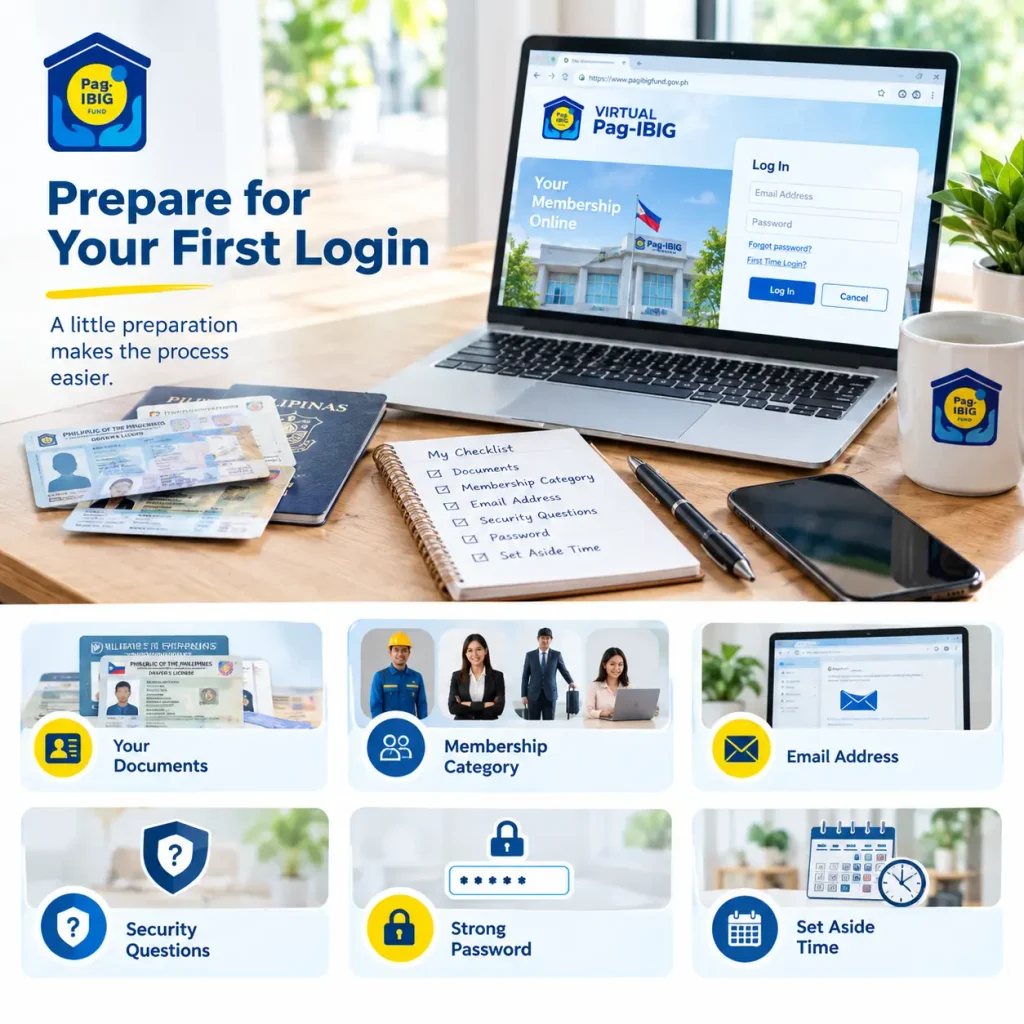
Before attempting to log in, gather information to make the process smooth.
Gather Your Documents
Have your government ID nearby. Know your date of birth exactly as recorded in Pag-IBIG. This information is needed for registration and verification.
Know Your Membership Category
During registration, you will need to specify if you are an employee, self-employed, overseas worker, or non-working spouse. Know which applies to you.
Have an Email Address
You will use this as your username. Make sure the email is active and accessible. If registering, you will receive a confirmation email.
Think of Security Questions
Before registering, think of security questions and answers only you know. These are used later if you forget your password.
Choose a Strong Password
Before registering, think of a password that is at least 8 characters with upper and lowercase letters, numbers, and symbols.
Have Quiet Time
Plan to have time available when you register. Do this when you are not rushed and can give it proper attention
After You Successfully Log In
Once you are in your account, explore what you can do to make the most of Virtual Pag-IBIG.
Download Your Contribution Statement: Go to the contributions section. Download or print a formal statement. Keep this for your records or if you need proof of contributions for loans, employment, or other purposes.
Check Your Account Balance: Your Total Accumulated Value (all contributions plus dividends) is displayed prominently. This number is important for loan eligibility calculations.
Review Your Member’s Data Form: If available through Virtual Pag-IBIG, you can view your MDF. Verify all information is correct—name, birth date, address, employment status, beneficiary details. If anything is wrong, contact Pag-IBIG or visit a branch to update it.
Check Your Loan Eligibility: Some Pag-IBIG portals show your loan eligibility instantly. See what loan types you qualify for and maximum amounts. This helps you plan for major purchases.
Bookmark Important Sections:
If there are sections you access frequently, bookmark them for quick access next time you log in.
Save Important Documents: Many documents can be downloaded. Save copies locally or print them for your records. Digital copies are useful for quick reference without logging in.
Keeping Your Account Secure Long-Term
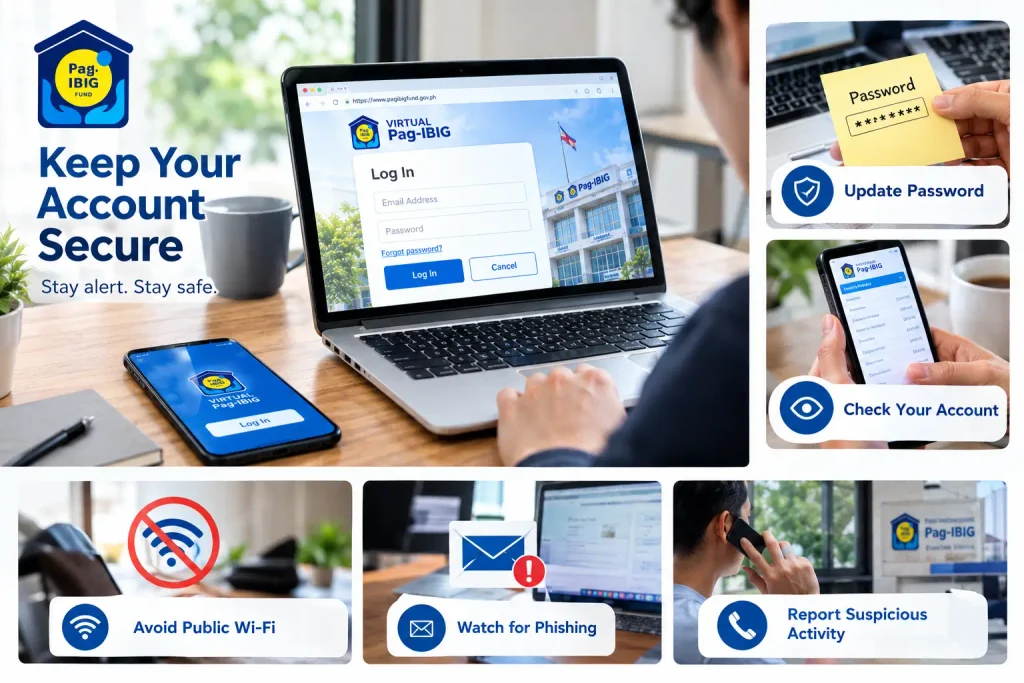
Security is not a one-time setup—it requires ongoing attention.
Never Share Your Credentials:
Do not give your username or password to anyone, including Pag-IBIG staff. Your password should be known only to you.
Update Your Password Periodically
Update your password periodically for security. This reduces risk if your old password has been compromised without your knowledge.
Monitor Your Account
Check your account monthly or at least quarterly. Look for transactions you do not recognize or information that has changed unexpectedly.
Report Suspicious Activity Immediately
If you see something wrong—unauthorized transactions, information changes you did not make, or strange activity—contact Pag-IBIG right away.
Use Secure Internet:
Avoid logging in on public Wi-Fi networks. Use your home internet or mobile data connection. Public networks expose your login credentials to potential interception.
Be Wary of Phishing
Phishing emails and websites impersonate Pag-IBIG to steal credentials. If an email asks you to verify your information or login urgently, go directly to Virtual Pag-IBIG yourself instead of clicking links in the email.
Frequently Asked Questions
Conclusion
Virtual Pag-IBIG puts your Pag-IBIG account in your hands—check your balance anytime, apply for loans, view your data, and manage your membership without waiting for branch hours. The first login might seem intimidating, but once you have access, logging in becomes straightforward.
Take 10 minutes to register today if you have not already. Set a strong password. Bookmark the official website. Then you have instant access to your Pag-IBIG account forever.